
Home › Running the fleet
The fleet console
The fleet console is where OPSAVOR staff set up customers, keep them on the latest version, and help when something goes wrong. No technical background needed.
What it is
Every restaurant customer has their own private copy of OPSAVOR, called a tenant. The fleet console (also called the fleet manager) is the one place that looks after all of them: it creates a tenant, checks it is healthy, moves it to a new version safely, takes backups and helps when a customer is stuck.
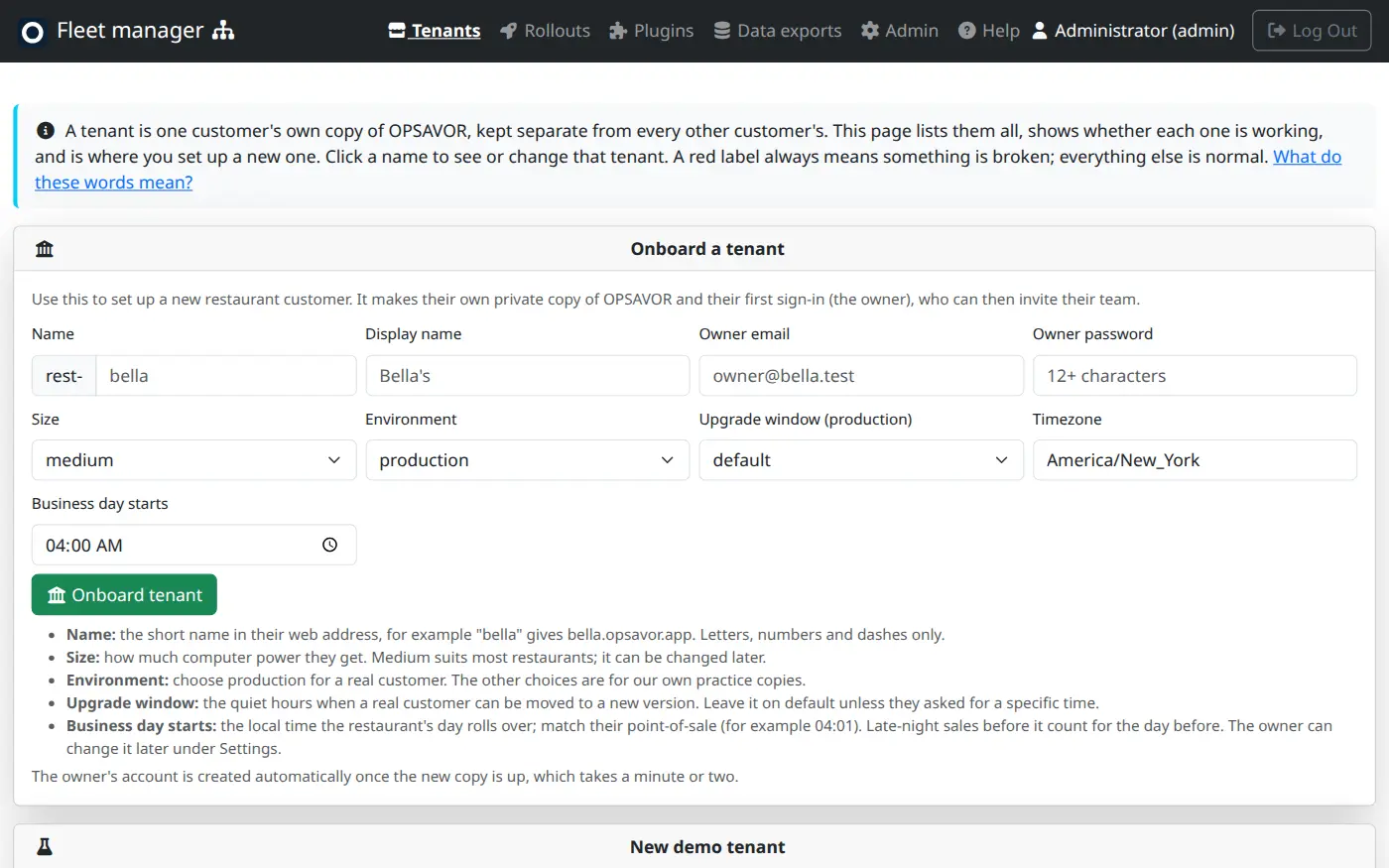
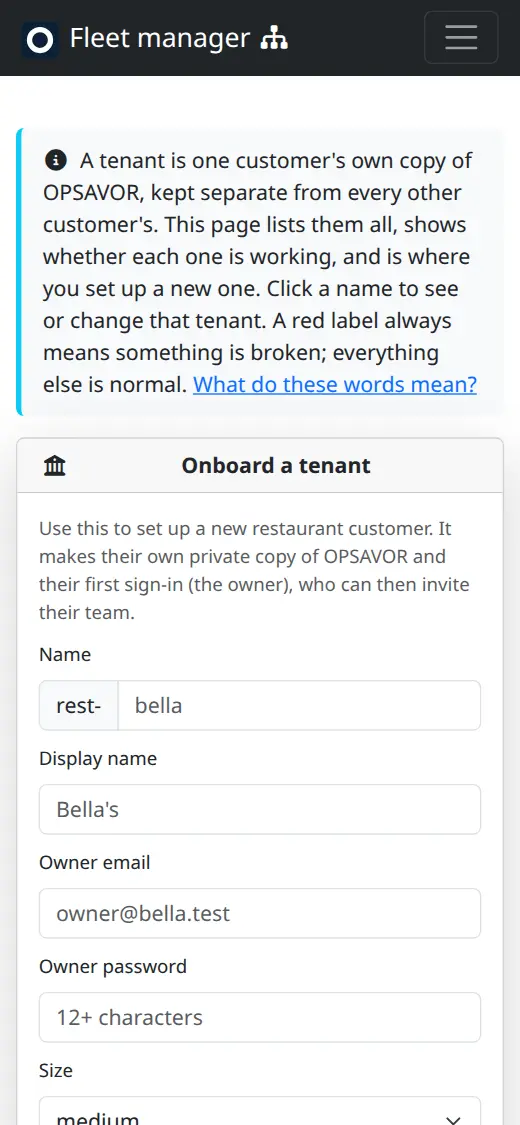
The console is at fleet.opsavor.work. It works on a phone as well as on a computer, so you can check on a rollout from anywhere.
Signing in
Staff sign in with their Google account at the company address (@opsavor.ai). A few people also have a local username and password. Your first sign-in creates your account at the Support level, and an admin can raise it.
Who can do what
| Level | Can | Cannot |
|---|---|---|
| Support | Look at everything: tenants, rollouts, inbound email, windows. Check health. Impersonate a customer to help them (with a reason). | Change anything. |
| Ops | Everything Support can, plus onboard, change, resize, suspend and delete tenants; manage a tenant's users; backups and restores; start and control rollouts; regenerate an email address; read the audit record. | Manage console users or skip upgrade windows. |
| Admin | Everything, plus manage console users and sign-in providers, edit upgrade windows and rollout settings, and open a window early in an emergency (with a reason, recorded). | Nothing is off limits, which is why everything is recorded. |
The pages
- Tenants
- All customers, whether each is working, and where you onboard a new one. Click a name for that customer's page.
- Rollouts
- A new version moving onto the customers, a few at a time. See Releases and rollouts.
- Upgrade windows
- The quiet hours when real customers may be moved to a new version.
- Inbound email
- Every message that arrived at a customer's invoice address, and what happened to it. See Inbound email.
- Data exports
- Copies of customer documents and what was read from them, for the data-science team. They never change anything for a customer.
- Audit
- The permanent record of who did what and when. It cannot be edited.
- Staff
- The people who use this console (admins only).
- Sign-in providers
- Lets a customer's staff sign in with Google or Apple (admins only).
- Help
- The words used here and the common jobs, inside the console itself. This site goes into more detail.
What the colours mean
Red always means something is broken. Nothing else is ever red. Environments are labels, not warnings: production is purple, and the others are neutral.
- green is working normally.
- yellow needs attention, or is waiting.
- red is broken: a person needs to look.