
Home › Plugins
Plugins: how they work
Plugins add insight to your records: cards on Start, pages of their own, a daily Brief. You decide what each one may do.
A plugin is an add-on that works over your own records. It reads what you have confirmed and shows you something useful: a few figures, a list of things to chase, a daily Brief. A plugin only ever sees your own business, and only what you allow.
The old built-in Pulse, weekly Brief, insight cards and alerts are gone from the app. Their job now belongs to plugins. Which plugins you have depends on your release and on what OPSAVOR has turned on for you: see Beta, demo and planned features.
Where plugins show up
- Cards on Start. A plugin can put figures, a short list or its latest Brief at the top of Start.
- A page of its own. Plugins with a page are listed under Plugins in the menu, one entry each.
- Notices and messages. A plugin can post a notice, or (with a flow) message people on your team. Both appear in the Inbox.
- Savy. A plugin can give Savy more to answer from, and can add a skill you pick in the Savy drawer (see Build a plugin with Savy).
Everyone who can see your records sees the plugin pages and cards. A member limited to one location sees that location's figures. Personal details such as birthdays are only shown to people who are allowed to see people.
Plugins that belong together are grouped into suites, so the menu has a section for each part of the business: People & Staff, Operations & Commercial, Connected Workspace and Financial Intelligence.
Add plugins from the App Store
Owners can browse the App Store under Manage. It shows the plugins OPSAVOR publishes for your business and the suites they belong to. Press Install on an app or suite, then approve what it asks for on Plugins. Installing does not turn anything on by itself.
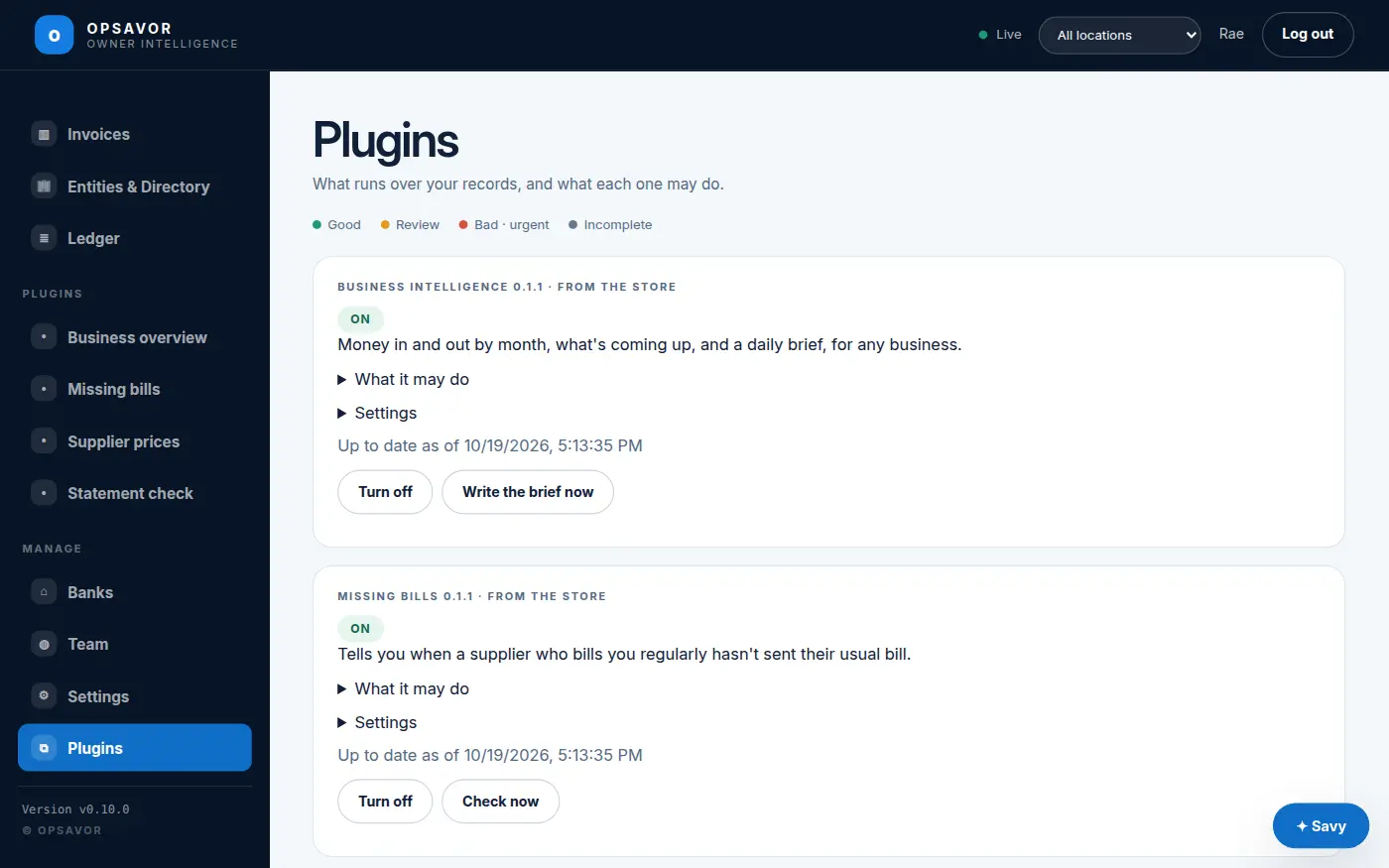
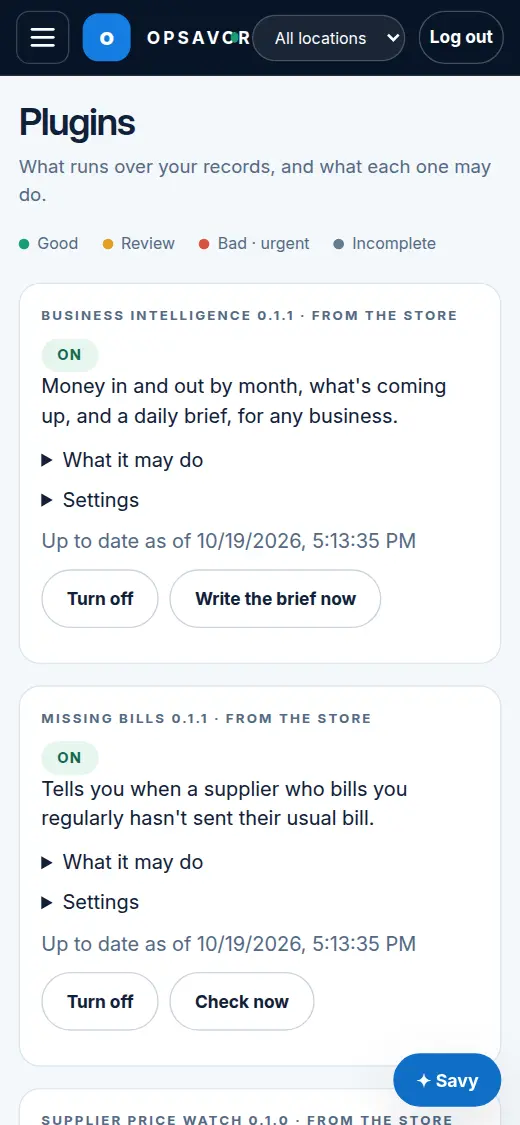
Approving a plugin (owners)
Owners have a Plugins screen under Manage. It lists every plugin your business has, with its version, whether it comes from the store or was built here, and its state: On, Waiting for approval, Off, or Failed.
Nothing a plugin asks for is allowed until you approve it. A plugin that is waiting for you shows what it asks for in plain words, under What it may do. For example:
- Read dated records, what records say, how they connect, organisations, agreements or the books.
- See people, including personal details like birthdays (still only shown to members who can see people).
- Write with the AI model, up to a stated number of tokens a day.
- Post notices in the app.
- Send email. By default each notice waits for you; an owner can let notices to owners, or a limited number a day, go without asking.
- Run custom code if it is an app, with its size and a fingerprint shown before you approve it.
- Show cards on Start, or its own page.
- Open Plugins under Manage.
- Read What it may do on the plugin's card.
- Press Approve and turn on. If you do not want it, leave it waiting.
When a new version of a plugin asks for more than you approved, the card says Version … asks for and shows an Approve button with the version number. Until you press it, the version you approved keeps running. A new version that asks for nothing more goes live by itself.
Plugin packs
Sometimes several plugins belong together. Installing a suite from the App Store adds its apps as a pack: they appear together on Plugins with one description of what the pack asks for, and you approve the waiting apps in one step. The plugins still run separately — each has its own page, settings and on/off switch.
Turning off, settings and removing
- Turn off stops a plugin. Its pages and cards go. Turn on brings it back.
- Settings opens on a plugin that is on and has options, such as how many days ahead to warn you. Change them and press Save.
- Remove appears only on a plugin built here, and asks you to confirm. What it already wrote stays; its pages go.
- Open the App Store to add another app. If your business is connected to the plugin store, Check the store now looks for new plugins and versions straight away; it also checks by itself every hour.
Emails, messages and web hooks wait for you
By default, every email notice a plugin sends waits for you at the top of the Plugins screen under Waiting for you to send, with the plugin, the message and who it goes to. Press Send to send it, or Don't send to drop it.
An owner can change that for each store plugin, under Its email on its card:
- Ask me every time keeps every notice waiting. This is the default.
- Only notices to owners sends a notice addressed only to owners without asking; one that reaches anyone else still waits.
- Up to a daily limit sends notices without asking until that day's allowance is used, then waits. The owner chooses the limit.
If an email reaches only some of the people on it, the notice says who it did not reach and still counts against the day's allowance, because it did go out. One that reached no one does not use up the allowance. The same waiting rule applies to the messages and web hooks a flow sends, unless you let a store plugin's flow send by itself. A document for someone outside is always sent by a person.
Plugin values
Some plugins need something only your business can give them: a token for another system, or a name such as a workspace. These appear under Values on the plugin's card.
- Plain values are configuration the plugin can use, such as a workspace name. You can read and change them.
- Secret values are write-only. Once saved, neither you nor anyone at OPSAVOR can read them back. Replace one by entering a new value; to make it plain, clear it and enter it again.
- A red Needs setup badge means a required value is missing. A plugin that calls another system cannot do so until it is set.
Owners can set these; OPSAVOR staff can also set them from the fleet console. Savy can manage values for an owner too, including setting a secret, but it is never allowed to read a secret back. Values are kept per business and per plugin, and removing a plugin removes its values.
When a plugin proposes a record
A plugin can work out something it would otherwise ask you to type — a count, a waste event, a correction — and put it on the Plugins screen under Proposals waiting for you. Each proposal shows the values, why the plugin proposes them, and where they came from.
- Record it writes it as a manual observation, with you as the person who entered it and the plugin named as the source. It then waits for review like a file you uploaded.
- Don't record writes nothing; the decision is kept with the proposal.
Nothing is recorded before you choose. The same proposal is not offered twice while it is still waiting; if you reject it, the plugin may offer it again later.
When a plugin asks for an approval
Some plugin rows are decisions with an effect, not just a to-do. They show Approve and Reject instead of Mark reviewed. Only the roles the plugin names can decide — usually owners and managers, sometimes the accountant.
- The row shows who decided and when, so an approved version is easy to tell from one still waiting.
- Approving can do what the plugin describes in plain words on its card, such as publish a schedule or send a message. It happens once.
- If the row's figures change, it asks again; the older decision stays in the record's history.
- A rejection can be changed to an approval. An approval is never silently taken back after its effect.
For a simple to-do — a price that went up, a bill that did not come — Mark reviewed is still the light touch, below.
Mark reviewed and Undo
This arrives with platform v0.14.0. Until your business has it you will not see these buttons. See Beta, demo and planned features.
Some plugin tables and lists are to-do lists: a price that went up, a bill that did not come, a statement that does not match. When you have dealt with a row, press Mark reviewed.
- The row folds away under Reviewed (n), with who reviewed it and when.
- It stops producing notices, and stops appearing in briefs, until its figures change. If they change, it comes back.
- Pressed by mistake? Open Reviewed (n) and press Undo. The row goes back on the list.
Owners and managers can review. Others see the lists but no buttons.
Plugins available today
| Plugin | What it does | Needs |
|---|---|---|
| Business Intelligence | Money in and out by month, this month so far against the same days last month, what is coming up (bills due, scheduled obligations, birthdays), and a daily Brief written by the AI model. Every figure in the Brief is checked against your records. If a figure cannot be checked, you get the records as a plain list instead. The Brief is written each day at the time set in the plugin's Settings. | A platform release with plugins (v0.12.0 or later). Turned on with OPSAVOR. |
| Missing bills | Learns how often each regular supplier bills you and lists the ones whose next bill is late, so costs do not look lower than they are. | A recent release (the one with Mark reviewed). Turned on with OPSAVOR. |
| Supplier price watch | Reads your bill lines and lists items whose unit price changed, with what the change adds to an order like the last one. | A recent release (the one with Mark reviewed). Turned on with OPSAVOR. |
| Statement check | Compares each supplier statement with the bills you have from them and shows the difference. | A recent release (the one with Mark reviewed). Turned on with OPSAVOR. |
Open the App Store to see which of these are available to your business. Install one there; it then appears on Plugins, waiting for you to approve it. You can also build your own with Savy.