
Home › Running the fleet
Supporting a customer
Everything on a customer's page: checking health, helping someone sign in, impersonating to see what they see, backups, resizing, suspending and the model that reads their documents.
Open Tenants and click a customer's name. The page is a stack of cards, each a job, and each says in plain words what it does. Buttons that could lose data ask you to confirm.
Is it working?
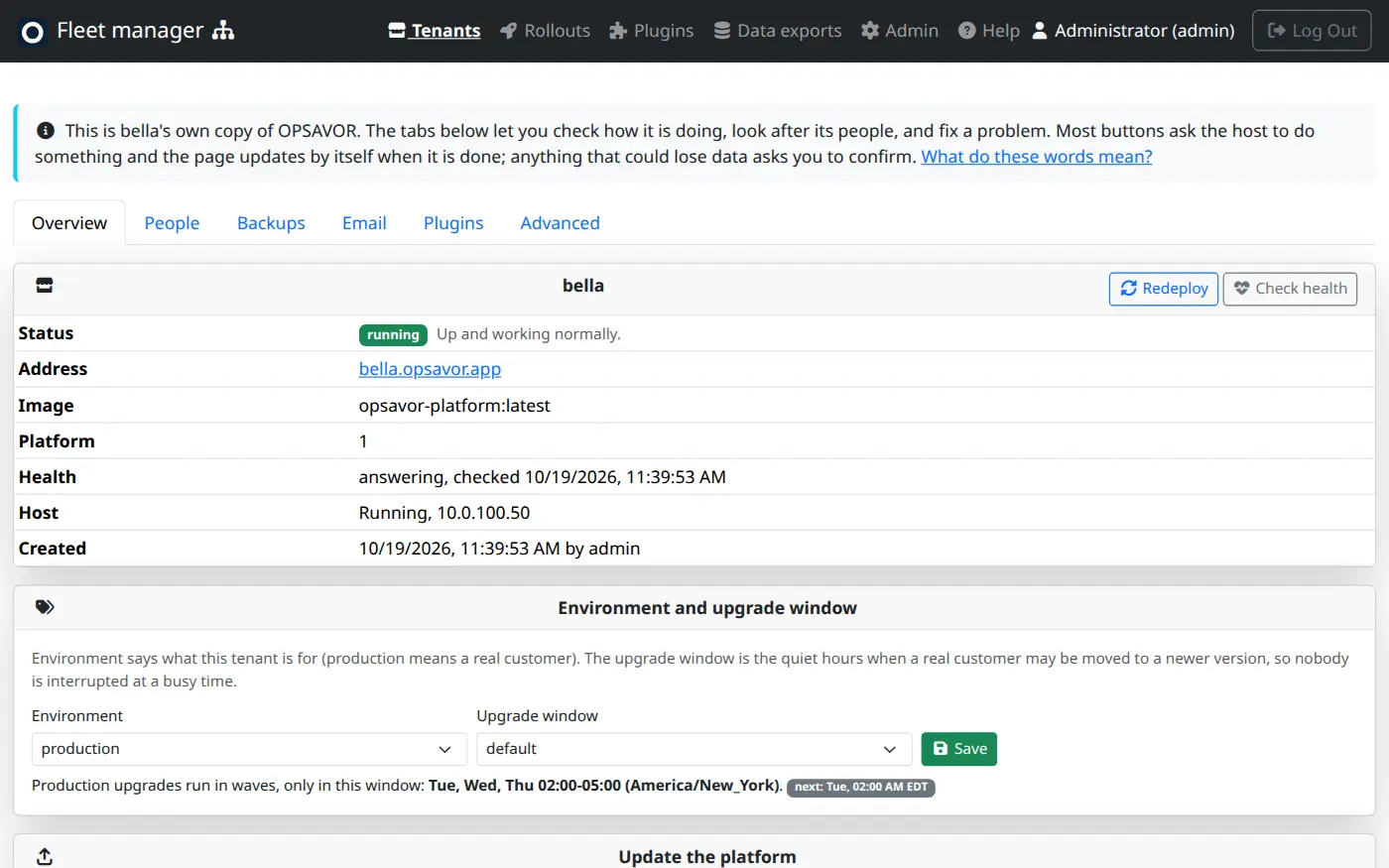
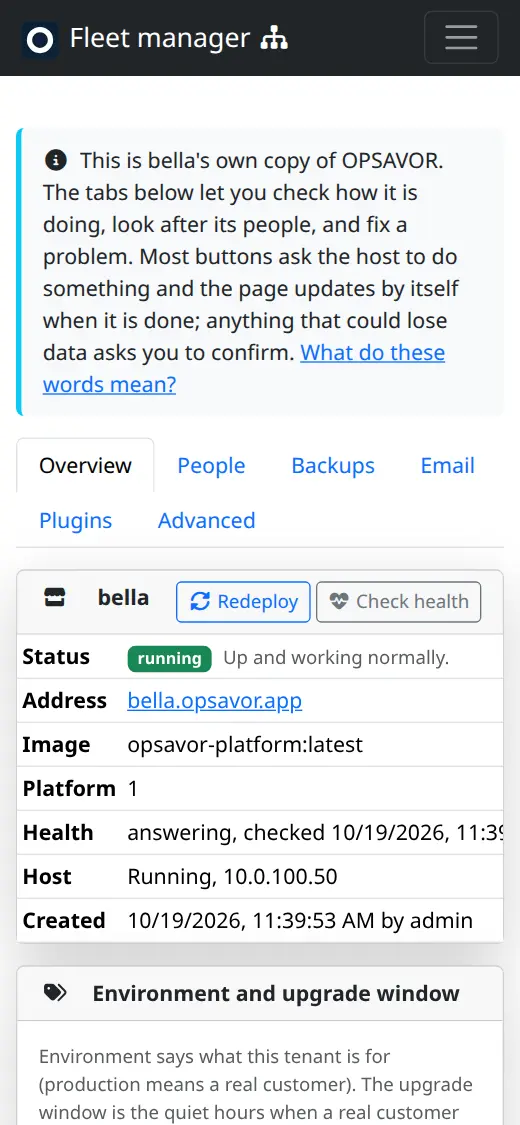
The top card shows Status (running is good), the address, the version it is on, and the last Health check. Press Check health for a fresh test. Redeploy rebuilds it from its saved settings, which fixes most "it is stuck" cases; its data volume is kept.
Helping someone who cannot sign in
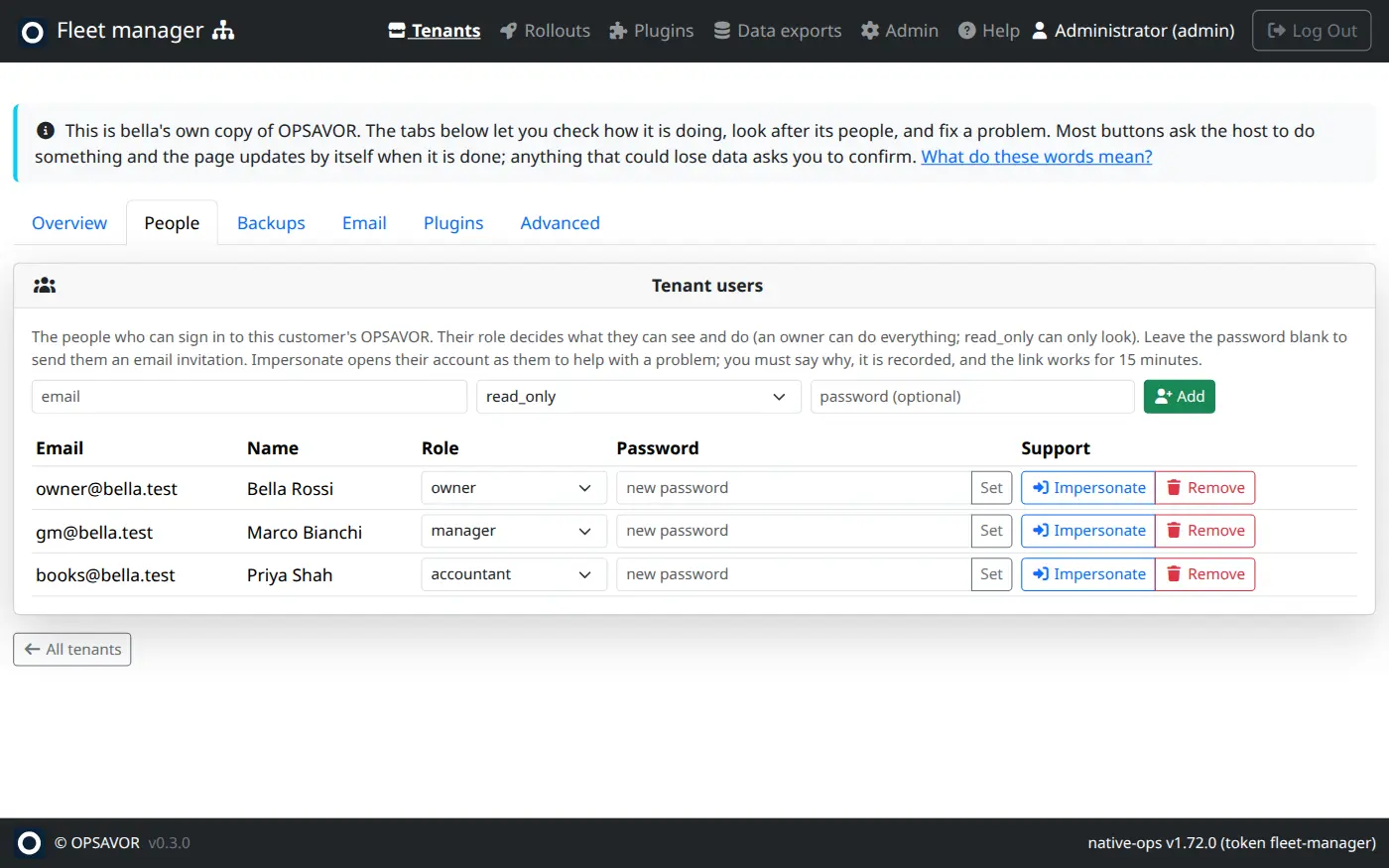
Under Tenant users you see everyone who can sign in to this customer, with their role.
- Set a password: type a new one in that person's row and press Set. Tell them by phone.
- Send an invitation: add them again with the password left blank.
- Change a role from the drop-down. Remove takes away their access.
Impersonate: see what they see
Press Impersonate to open the customer's product signed in as that person, for example to see the screen they are confused by. It asks for a reason, which is recorded in the audit log along with who you are, and the link works for 15 minutes. Support staff can do this. Do not change a customer's data while impersonating unless they asked you to.
Backups and restores
The Backups card lists the customer's backups, newest first, and why each was taken:
| Why | When | Kept |
|---|---|---|
| scheduled | Every day at 05:30 UTC, by the customer's own copy. | The newest 7. |
| pre-update | Just before every update or rollout moves them. | Until someone removes it. |
| pre-restore | Just before a restore replaces their data, so a restore can itself be undone. | Until someone removes it. |
| manual | When someone presses Back up now. Take one before any risky change. | Until someone removes it. |
Each backup is a complete, consistent copy of the database plus the documents. It is taken by the customer's copy itself, so it is whole even while people are working.
Restore puts the data back exactly as it was then, replacing what is there now, so it asks you to confirm. The customer's copy saves what it is replacing (pre-restore), restarts and swaps the data in as it comes back up. Expect it to be unavailable for a few seconds. If the backup has gone missing in the meantime, nothing is replaced and it starts on its current data.
Update to a specific version
The Update the platform card moves one customer to a version you name (for example opsavor-platform:platform-v0.7.0) the safe way: a pre-update backup first (a real customer is not updated if it fails), settings carried over, checked afterwards, and put back on its own if the new version does not start. Real customers normally go through Rollouts instead; use this for one-off cases.
Size, pausing and deleting
- Resize: small, medium or large. Bigger copes with more people and costs more.
- Suspend: pauses a customer on purpose, for example a missed payment. Nobody can sign in, but data is kept. You must write the reason, and it is shown on the page. Unsuspend brings them back.
- Delete: removes the customer and their address. A real customer's data cannot be got back unless a backup exists, so the box that also deletes the data volume is only for made-up demo tenants. Press twice to confirm.
The reading model
The Models card (on the Advanced tab, for restaurants and demo tenants) chooses the AI for three jobs: Reads documents, Second reading (a different model that checks the first) and Savy, which answers questions and also writes plugins' text. Evaluate tests a model on sample documents without changing anything, so you can compare before you switch with Save. Savy uses the reader's model unless you set its own (Use reader's puts it back). A blank key uses the fleet's key.
Run a job now
On the Advanced tab, the Run a job now card does on demand what OPSAVOR otherwise does on a schedule. Check the day re-checks each location's closed business day for a date (or the latest). Run the daily jobs does everything the daily schedule does: the backup, the bank sync, payment matching and the day check. Re-read all documents (Ops and Admin) reads every import again with the current model, so use it only after changing the reader.
The old Pulse, Brief and Alerts are no longer built in. Briefs now come from the Business Intelligence plugin, which is given to a customer like any other plugin.
Plugins
The customer's Plugins tab shows which store plugins they may run and what state each is in on their side. If an owner says a plugin is missing, check there first: it may not have been given, may be waiting for their owner, or may show failed with a reason. See Plugins and the store and When something is wrong.
Console, data exports and sign-in providers
- Simple Foundation UI (the Console card) switches the customer's product to the simple view for everyone there. See Settings.
- Export this tenant copies their documents and readings for the data-science team. It changes nothing for the customer.
- Sign-in providers (admins) are set up under that page and enabled per customer.