
Home › Running the fleet
Inbound email
How a supplier's email reaches the right customer, what each status on the Inbound email page means, and what to do when mail does not arrive.
How it works
Each customer has an invoice address like invoices+bella.3f9a…c21@inbound.opsavor.work. OPSAVOR receives mail for that domain itself:
- The supplier's mail server delivers to
inbound.opsavor.workon the standard mail port (25). - The fleet manager looks at the address. The part after
+starts with the customer's short name (bella), so it knows whose it is. - It passes the message, with a signature proving it came from the fleet manager, to that customer's own copy of OPSAVOR.
- The customer's copy checks the secret part of the address (it owns the secret), reads each attachment, and the documents appear in Add & Review.
Only the customer's copy knows the secret, so the fleet manager can route mail but cannot forge a valid address.
The Inbound email page
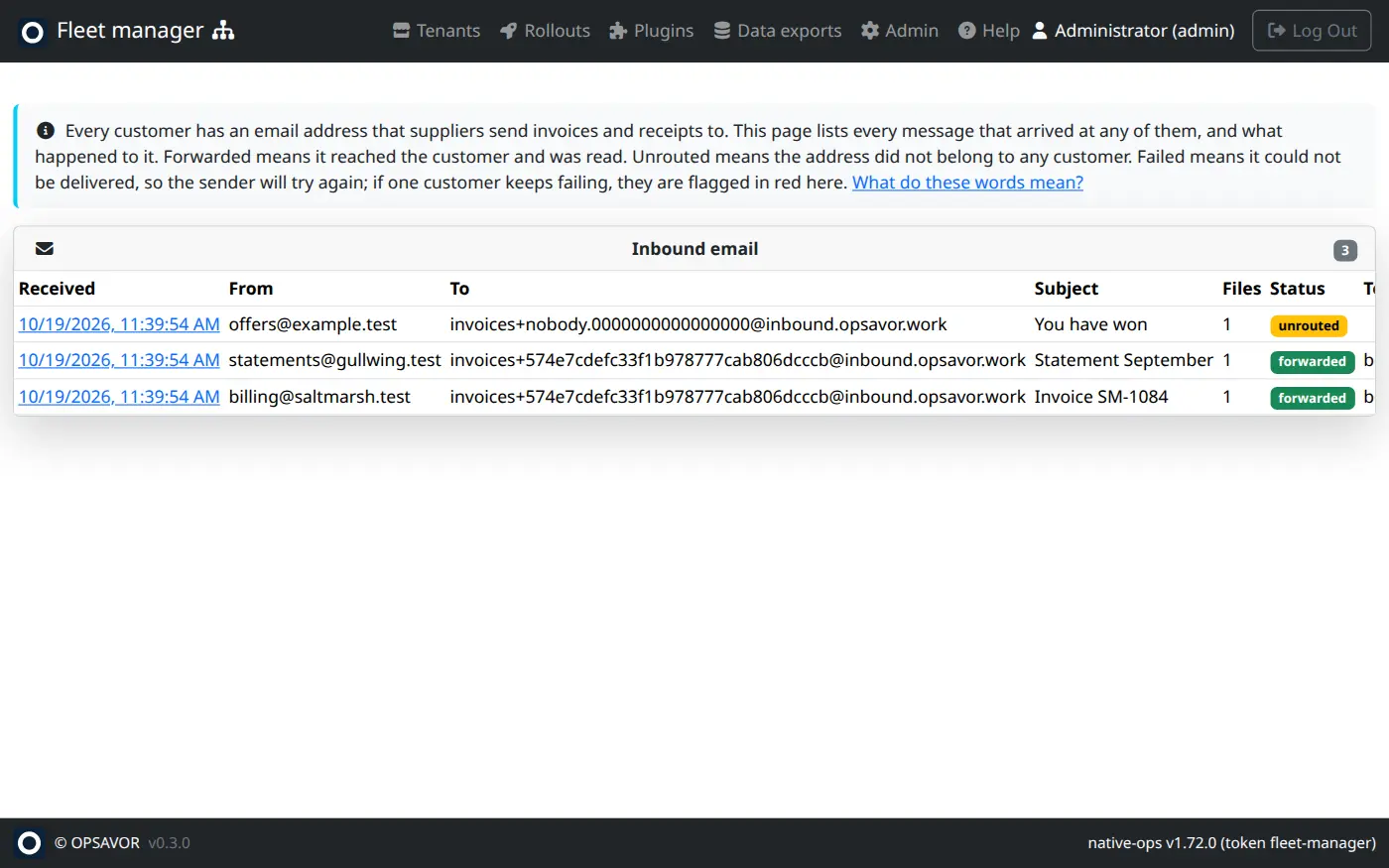
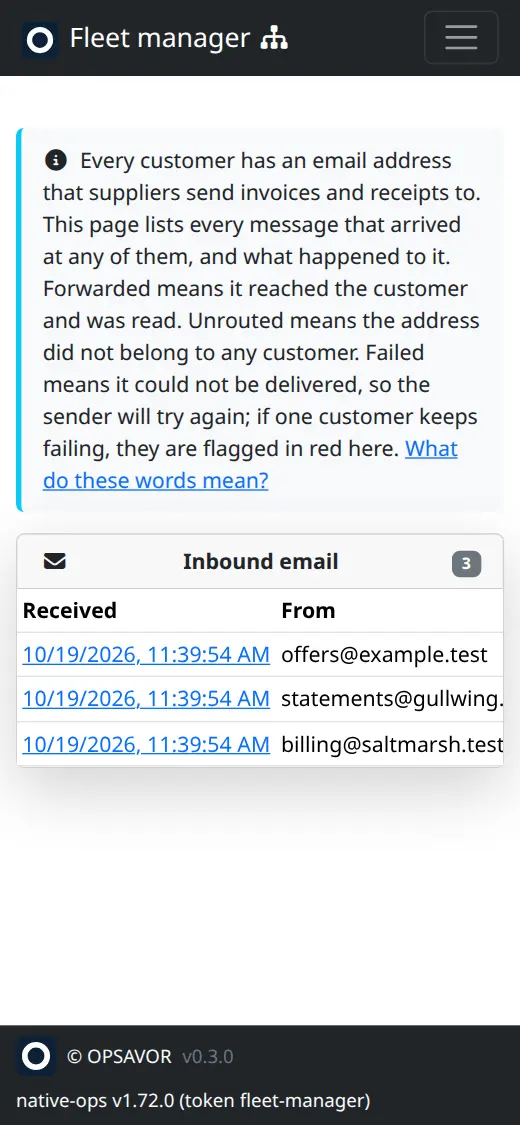
It lists every message received, newest first: when, from whom, to which address, the subject, how many files, the status, and the customer. Open a row to read the message and see each attachment and what became of it — a document's own state links to the customer's review panel, where a person confirms the reading. See Reviewing and confirming.
| Status | Means | What happens next |
|---|---|---|
| forwarded | It reached the customer and was read. | Nothing. The documents are in their Add & Review. |
| unrouted | The address does not belong to any customer. | Usually a typo or an old address. The sender is told it was refused. |
| rejected | The address was real but has been rotated, so it is switched off. | The sender is told permanently. The customer needs to give suppliers the new address. |
| failed | The customer's copy could not be reached or could not take it. | The sender is told to try again later, and retries on its own. Fix the cause (is the tenant running?) and the retry succeeds. |
If one customer keeps failing, a red banner at the top of the page names them and shows the last error.
Giving a customer a new address
Open the customer's page, find Email intake, and press Regenerate. It gives a new address and switches the old one off at once. Then tell the customer the new one. (Owners can also do this themselves from Add & Review.)
Before addresses carried the customer's name, they were just invoices+<long secret>. Those keep working until the first time the customer's address is rotated, after which they stop.
Mail did not arrive: a checklist
- Is it on the Inbound email page? If not, it never reached us: check the address for typos, and that the sender is not blocked by their own mail system.
- What status? Use the table above.
- Failed? Open the customer. Is the status running and the health line answering? If the customer was just updated or is suspended, mail fails until it is back; the sender will retry.
- Forwarded but the customer sees nothing? Open the row. Files such as logos or images in a signature are skipped on purpose, and a file already received is recognised as a duplicate.
- Unsupported attachment? The row lists what was skipped and why.