
Home › Using OPSAVOR
Reviewing and confirming
OPSAVOR reads every document, but a reading only counts once it has been confirmed. How to check one quickly, fix what was misread, move through a pile, and how automatic confirmation works.
Why confirming matters
An AI reader is fast, but it can be wrong. So OPSAVOR keeps one rule: a reading counts only once someone confirms it. Until then it does not touch your sales, costs or ledger. That is why the figures you see can be trusted.
The list: what is waiting
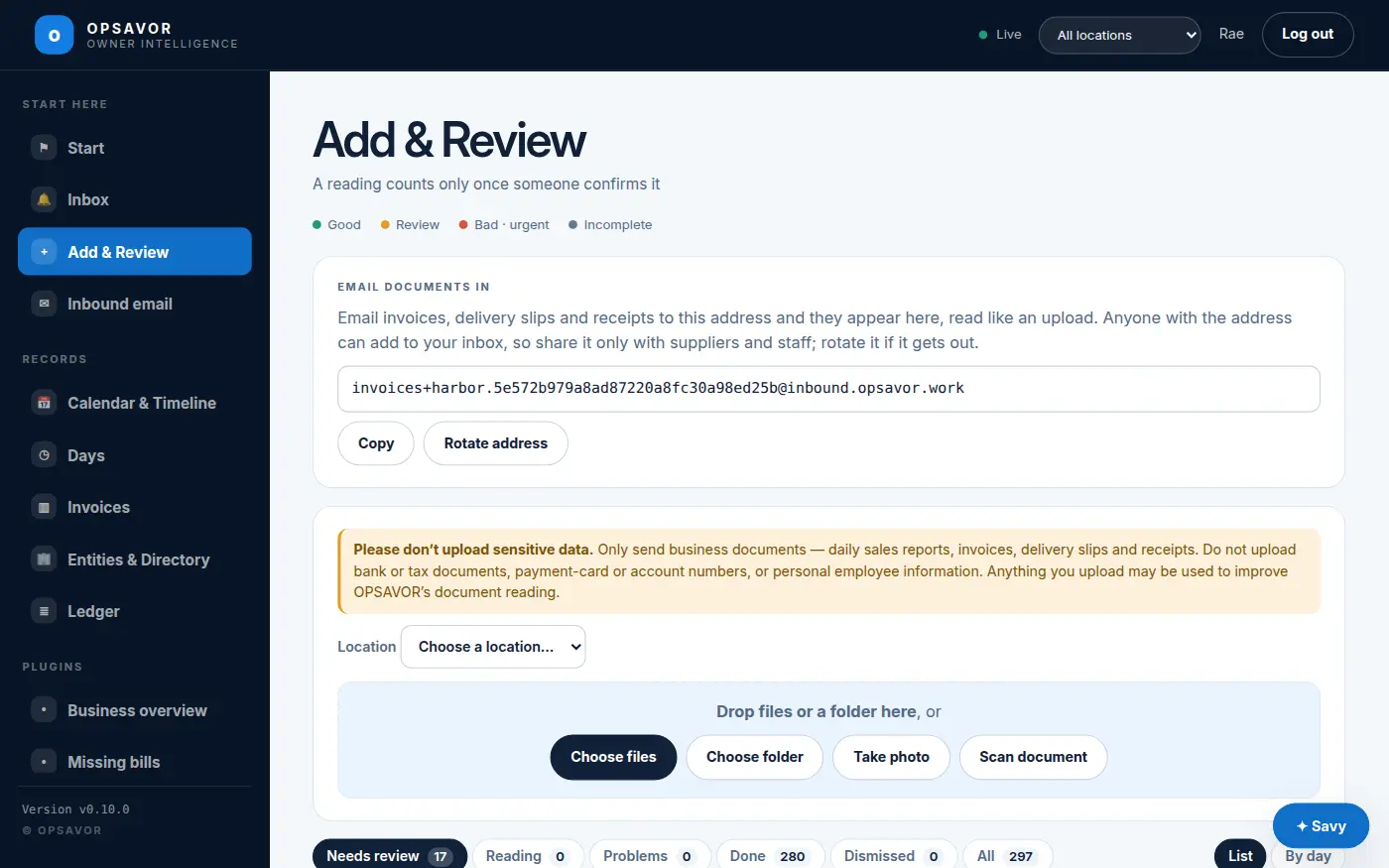
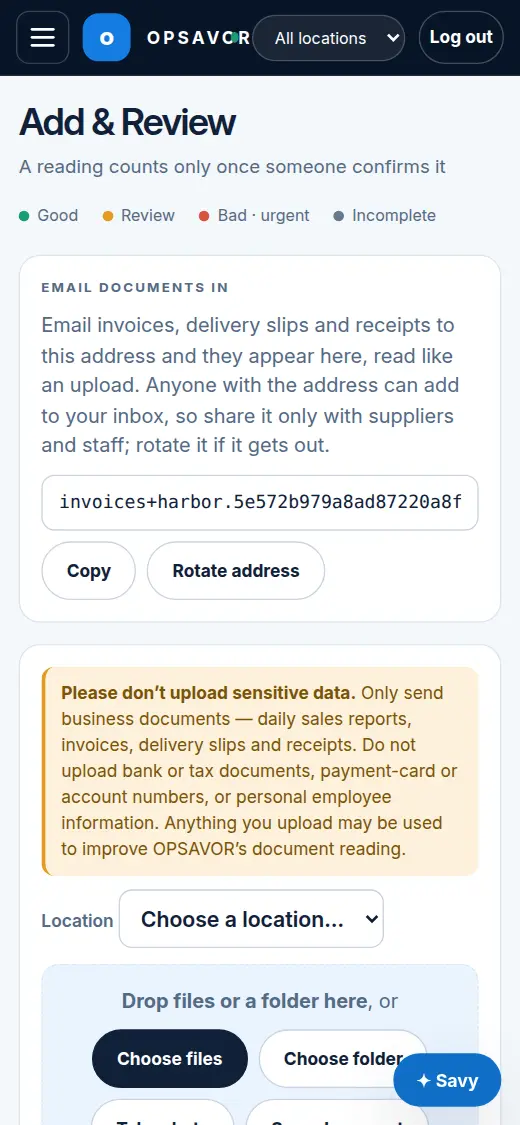
Open Add & Review. Below the upload buttons, tabs sort your documents, each with a count:
| Tab | What is in it |
|---|---|
| Needs review | Readings waiting for you, oldest first, which is the order to work through them. |
| Reading | Documents still being read. They move to Needs review by themselves. |
| Problems | Files that could not be read, or that OPSAVOR keeps but does not read. |
| Done / Dismissed / All | What has been confirmed, what was set aside, and everything. |
Each row shows what the document is (invoice, delivery receipt, daily totals…), the vendor and invoice number, the amount and the document's own date. Search by file name, vendor or invoice number, or filter by type and date. The list remembers your tab and filters on that device.
Checking a document
Press Review. The document opens on the left and what OPSAVOR read on the right.
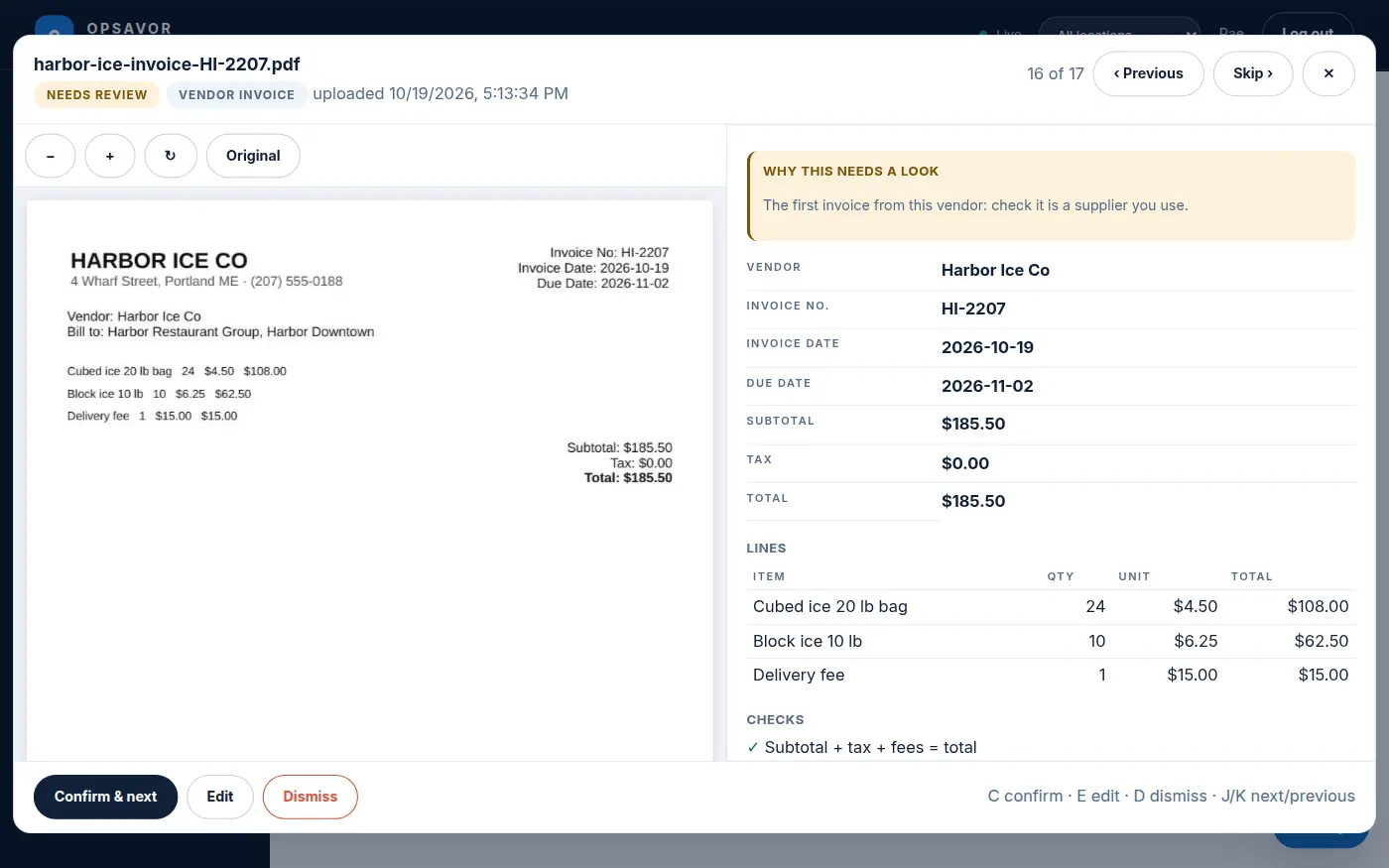
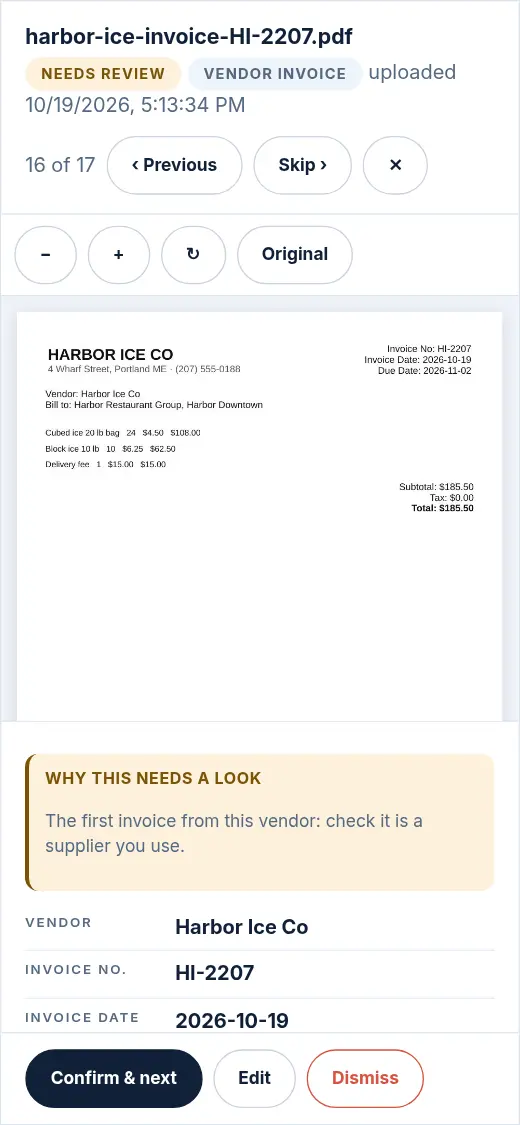
- The whole reading: vendor, invoice number, invoice and due dates, subtotal, tax, total and every line.
- Printed as: under each value, the words on the page it came from, highlighted, so you can check it at a glance without hunting through the document.
- not on the page means OPSAVOR could not find that value on the page as it was read. Look at it first.
- Why this needs a look says in plain words why the document was not confirmed automatically, for example "The first invoice from this vendor: check it is a supplier you use."
- Use −, + and ↻ to zoom and turn the page, and the arrows for the next page of a PDF. Original opens the file as it was sent.
Fixing a misread value
- Press Edit (or the E key).
- Correct the value, for example type
515.50for the total. You can change lines too, and add or remove one. - If a value was flagged but is right, tick Looks right beside it.
- Press Save corrections. The checks run again straight away, so a fixed total clears "does not add up".
Corrected values are marked corrected with what was originally read, and values you vouched for are marked checked by a person. Your corrections also teach OPSAVOR: each one is kept as an example of what the document really said.
Before you confirm
If confirming would need something from you, a Before you confirm box says what, before you press anything:
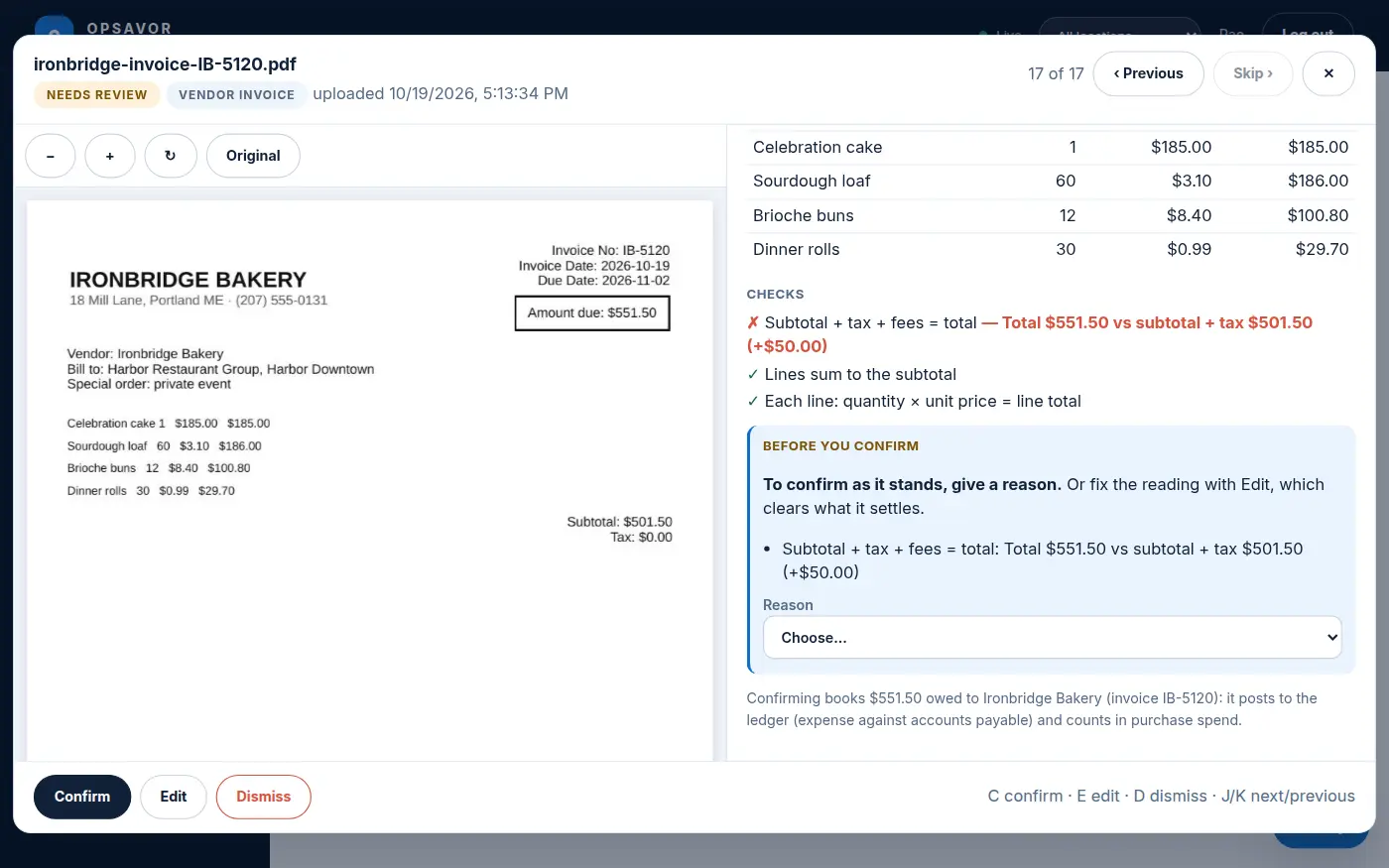
- The numbers do not add up, or a value is not on the page: fix it with Edit, or pick a reason to confirm it as it stands. The reason is kept in the audit record and the books mark the invoice as unverified.
- No date on an invoice: type the date. An invoice cannot be booked without one.
- A report with no dates in it: say which period it covers, and it is read again with those dates.
- A report that disagrees with figures already on file: a table shows each figure, the value on file (and which document it came from) and this report's value. Tick Replace the figures on file to use this report's. Only an owner can do that.
The sentence under the reading says what confirming will do, for example "Confirming books $515.50 owed to Saltmarsh Seafood…".
Daily sales reports
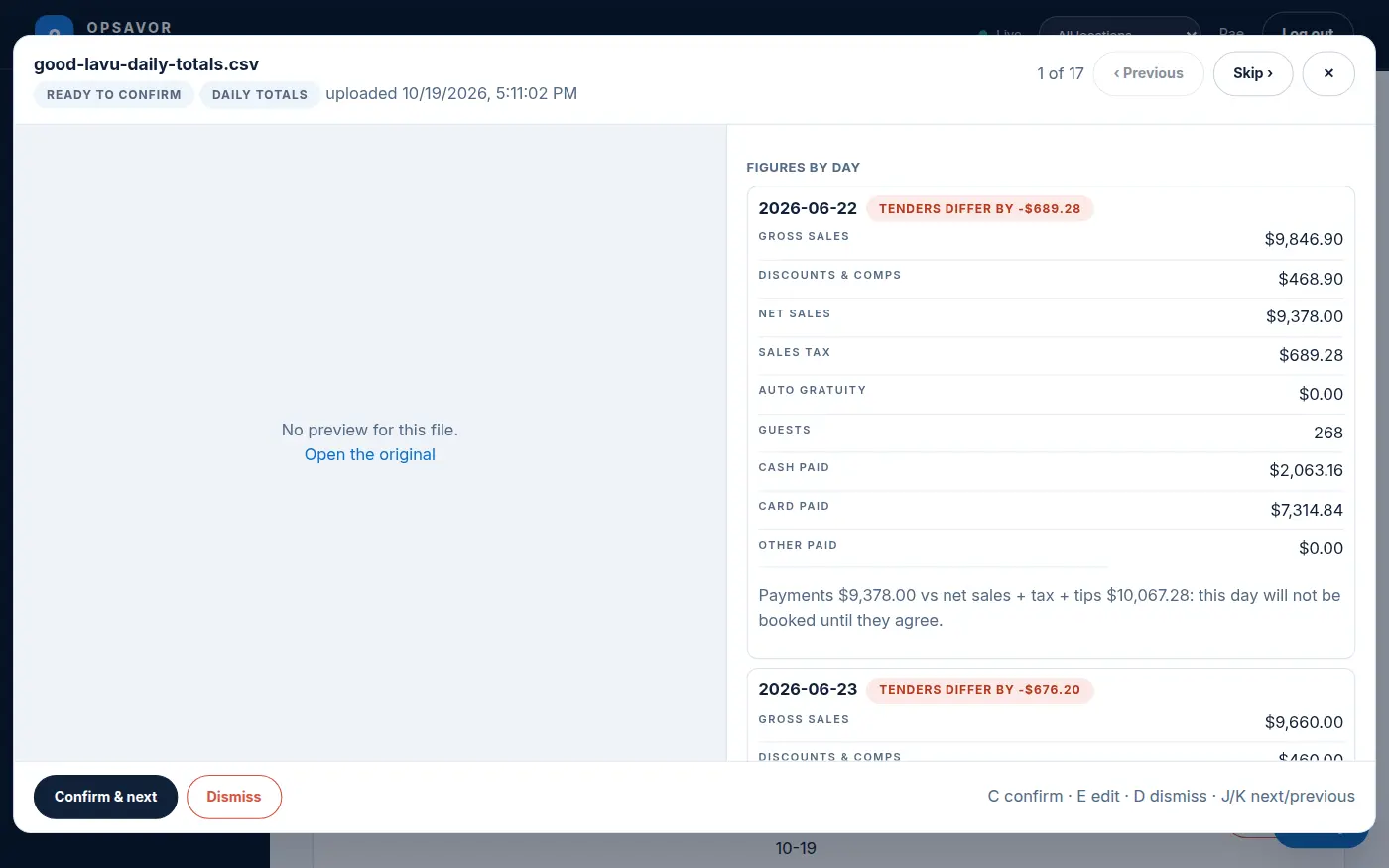
A sales report shows the figures it will book, day by day: net sales, tax, tips, each way guests paid, and more. Each day says whether the payments add up to net sales plus tax and tips: tenders add up, or tenders differ by $12.00. A day that does not add up is not put in the books until it does, and the month-end checklist names it.
Duplicates
If a document looks like one already on file, both are shown side by side: the other page and its vendor, number, date and total. Press It's a duplicate to set this one aside, or Keep both if they are really different.
Moving through a pile
Confirm & next confirms and opens the next document in the list. Skip and Previous move without confirming. Dismiss sets a document aside, and asks why: wrong file, a duplicate, not ours, unreadable, a test, or something else, with an optional note. A dismissed document can be brought back with Undo.
| Key | Does |
|---|---|
| C | Confirm (and go to the next) |
| E | Edit the reading |
| D | Dismiss |
| J or → / K or ← | Next / previous |
| + − R | Zoom in, zoom out, rotate |
| Esc | Close |
A confirmed document can be taken back with Take off the books (owners). Its figures stop counting, and you can correct and confirm it again.
Loading a lot of history
Press By day above the list to see one row per day: the documents that cover it, how many still need review, and which reports are missing (daily sales report, payroll) or complete. Click a document to review it. A day that has not finished yet says not closed yet rather than missing.
Automatic confirmation
It can save clicking to let OPSAVOR confirm documents that are clearly right. It is off by default, and there is no switch for it on the screens yet: ask OPSAVOR support to turn it on for your restaurant. It is deliberately cautious:
- A document is confirmed automatically only when OPSAVOR is highly confident and a second, different AI reader independently agrees.
- Anything unusual, new, or in doubt is left for a person, with the reason shown.
- Now and then OPSAVOR picks a confirmed document at random and double-checks it. If those spot-checks find too many mistakes, automatic confirmation pauses itself and everything goes back to a person until someone resumes it.
The weekly digest says how many documents were confirmed automatically, so you always know how much was approved without you.