
Home › Using OPSAVOR
Adding documents
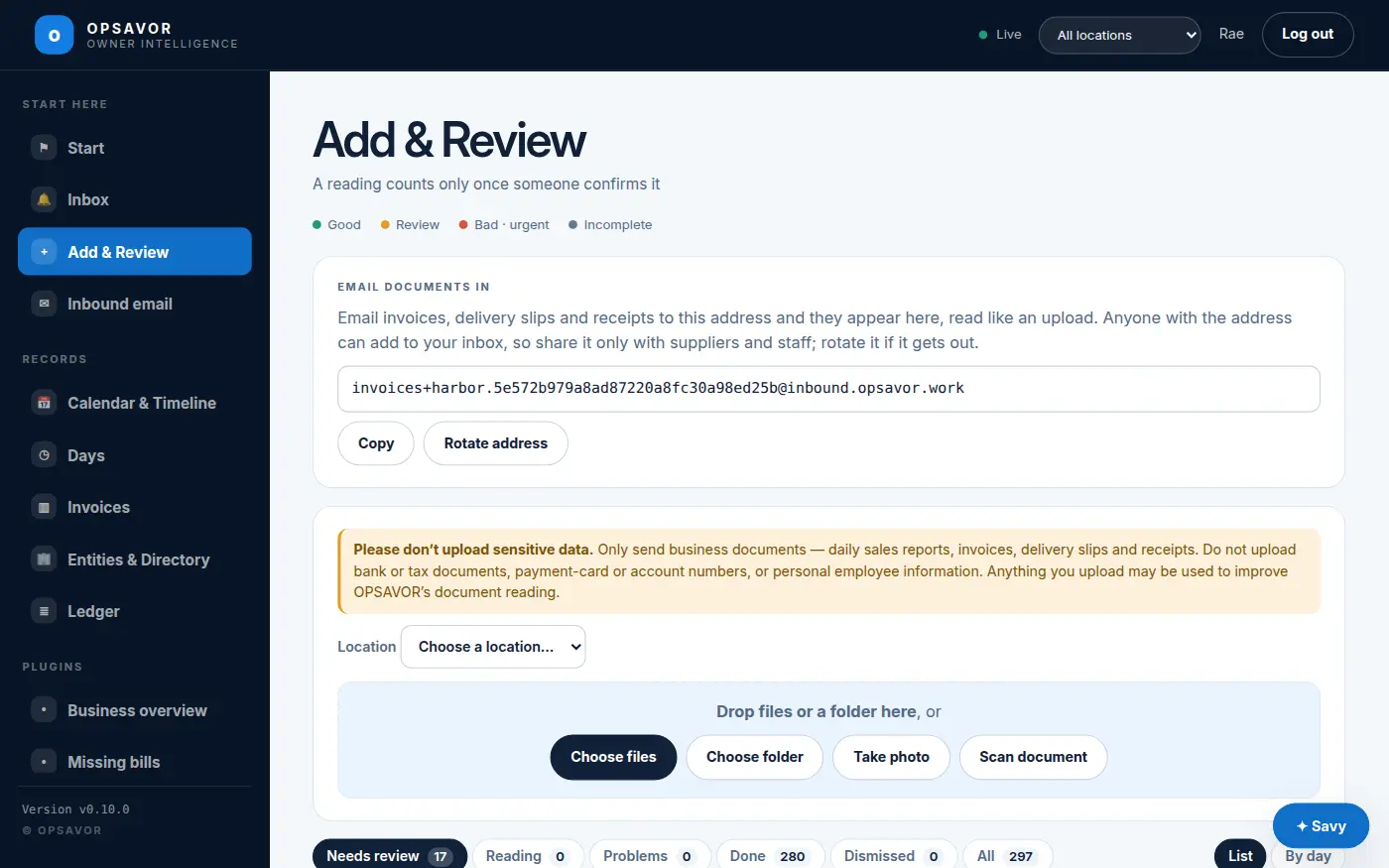
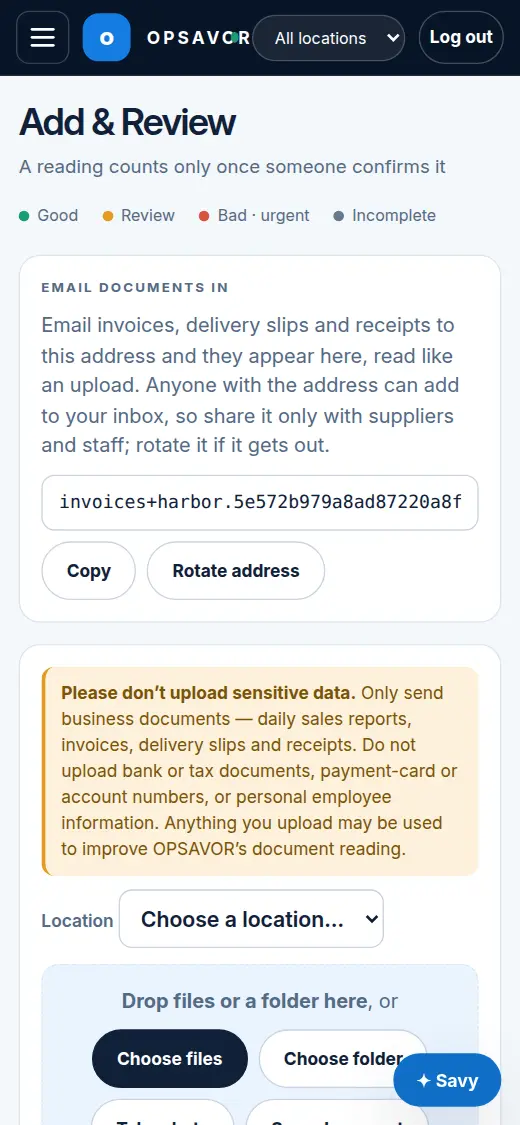
Three ways to get a document in: upload a file, photograph or scan it with your phone, or email it to your restaurant's own address.
Only send business documents: daily sales reports, invoices, delivery slips and receipts. Do not send bank or tax documents, payment-card or account numbers, or personal employee information. Anything you send may be used to improve how OPSAVOR reads documents.
What you can send
PDFs, photos (JPEG, PNG, WebP, HEIC), spreadsheets (Excel and CSV) and plain text or JSON exports all work. OPSAVOR works out what kind of document it is: a vendor invoice, a daily sales report, a delivery slip, a payroll or time report, a bank or vendor statement, and so on. You do not have to tell it.
1. Upload a file
Open Add & Review, press Choose Files (or drag a file on a computer), then Upload. You can pick several files at once.
2. Photograph or scan it
On a phone, Take photo uses the camera for a quick snap, and Scan document opens the scanner, which is better for paper. See On your phone for how the scanner works and tips for a clean scan.
3. Email it
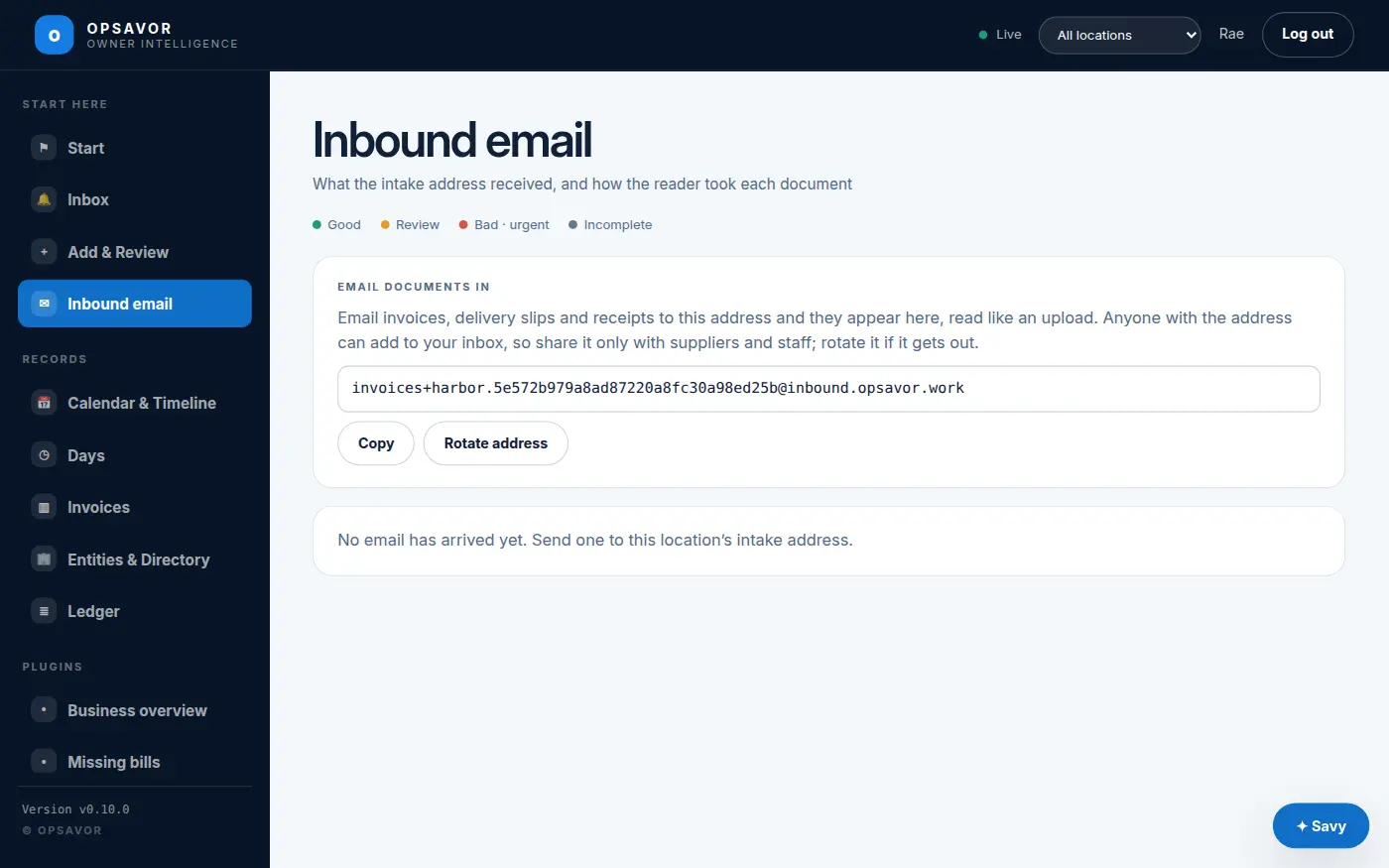
Every restaurant has its own invoice email address, shown at the top of Add & Review and on the Inbound email page. It looks like this:
invoices+yourname.3f9a…c21@inbound.opsavor.workSend or forward anything to it, with the documents attached, and it shows up in Add & Review a moment later, read exactly as if you had uploaded it. Give the address to your suppliers so their invoices arrive by themselves, and save it in your phone's contacts so you can forward a receipt from anywhere.
- Several attachments in one email are each read separately.
- Pictures that are not documents, like a logo in an email signature, are skipped on purpose.
- The Inbound email page lists every message that arrived and what happened to each file. If something you sent is missing, look there first.
Anyone who has the address can add documents to your inbox. If it gets shared too widely, press Rotate address (owners only). You get a new address straight away and the old one stops working at once, so remember to give the new one to your suppliers.
What happens next
A document moves through a few states, shown in the State column of Add & Review and sorted into its tabs:
| State | Meaning | Your move |
|---|---|---|
| Waiting to be read | It arrived and is being read (the Reading tab). | Nothing, it takes a moment. |
| Needs review | It was read, and something needs a person: the panel says what. | Press Review. See Reviewing. |
| Ready to confirm | It was read cleanly and is waiting for a person to confirm it. | Press Review, check, and confirm. See Reviewing. |
| Possible duplicate | It looks like something already on file. | Compare them side by side and decide. |
| Confirmed | A person (or a trusted automatic check) approved it. Its figures now count. | Nothing. An owner can still Take off the books if it was a mistake. |
| Dismissed | Set aside, with the reason you gave. Nothing in it counts. | Undo brings it back. |