
Home › Using OPSAVOR
On your phone
OPSAVOR is built to be used on a phone: the menu, the pages and the document scanner all work one-handed.
Using OPSAVOR on a phone
Open your restaurant's address in the phone's browser and sign in. On the small screen:
- The menu runs along the top. Swipe it sideways to see every page.
- The Add & Review list shows each document as a card, and the review panel puts the reading under the document with Confirm & next at the bottom, in reach of your thumb.
- Other tables that are wider than the screen scroll sideways inside their card.
- The blue Savy button floats at the bottom right on every page.
Add it to your home screen
In your browser's menu choose Add to Home screen (Android) or Share, Add to Home Screen (iPhone) and OPSAVOR opens like an app.
Scanning a paper document
On Add & Review, press Scan document. The scanner finds the page, straightens it and tidies the colours, so a photo of a crumpled invoice on a countertop reads like a flat scan.
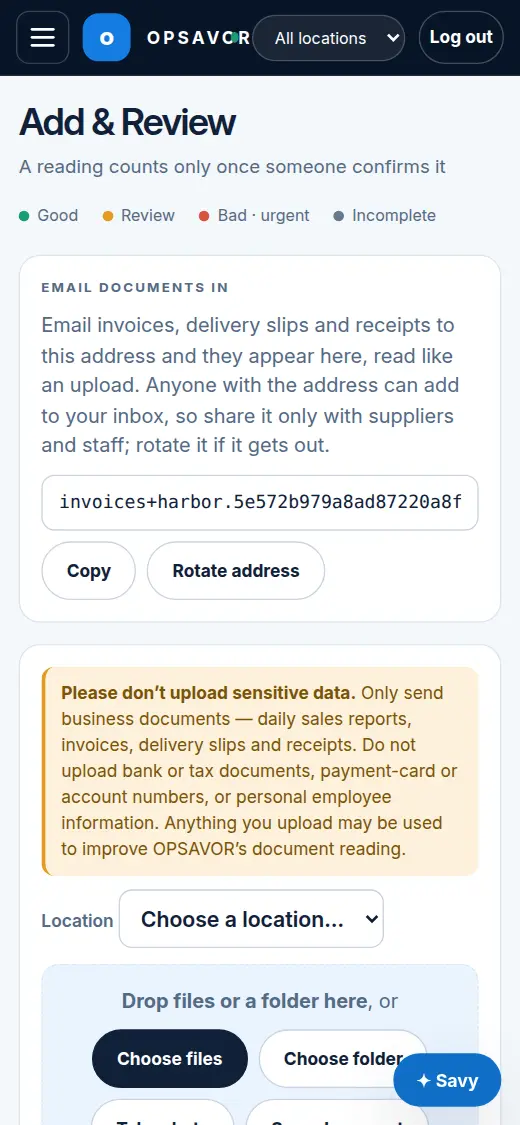
- Press Scan document and allow the camera when your phone asks.
- Point at the page. A live outline appears around it when it is found. Hold still until it says Got it, then tap the capture button.
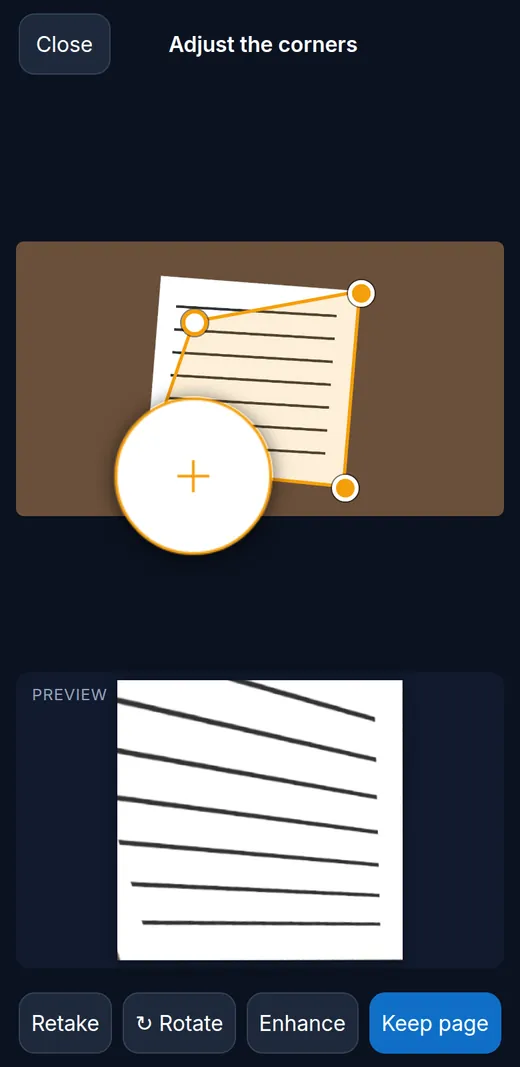
- Adjust the corners if needed by dragging the orange handles. A magnifier shows exactly where you are, and the preview at the bottom shows the result.
- Rotate if it is sideways. Enhance turns the page into clean black and white, best for printed text.
- Press Keep page. Scan another page for a multi-page invoice, then finish. Several pages are sent together as one PDF.
Tips for a clean scan
- Put the page on a dark, plain surface so the edges stand out.
- Good light, and no shadow from your phone or hand.
- Hold the phone flat above the page, not at an angle.
- If the camera does not start, check that the browser is allowed to use it, or press Take photo or Choose Files instead.